RTPEngine Deployment
As it is known, RTPEngine implements the script fisrt_boot_installer.tpl, which can be invoked using provisioning technology or can be downloaded and then run on Linux host.
To get the script, launch the following command:
curl https://gitlab.com/omnileads/omlrtpengine/-/raw/master/deploy/first_boot_installer.tpl?inline=false > first_boot_installer.sh && chmod +x first_boot_installer.sh
So, once we have the script, we go to work on the variables, removing comments and setting their values inside the script. We are going to list and explain each of these variables that should be set before running the script.
Installation Variables
- oml_infras_stage: Refers to the provider infrastructure. The idea is to take advantage of the APIs of cloud providers to determine topics like network parameters. If we are going to install onpremise or in cloud-based platform not available in the list, assign onpremise as a value for the variable. Possible values: onpremise, aws, digitalocean, vultr, linode.
- oml_nic: Here we should indicate the network interface on which TCP port 22222 is set, in order to process requests coming from Kamailio to establish an SDP in the WebRTC session.
- oml_public_nic: This parameter is optional, and has to do with the scenario in which there are 2 network cards, one for LAN and the other forWAN connections.
- oml_rtpengine_release: Here we should indicate which version of the component we want to deploy.
- oml_type_deploy: Here we indicate under which scenario RTPEngine will be operating. To understand this variable, we should review the operation of this component, since RTPEngine is the one who grants the necessary parameters (network address and port, among others) in order to agree on streaming audio with the user (agent or supervisor). Depending on the scenario, the possible values are: LAN, CLOUD, HYBRID_1NIC, HYBRID_2_NIC.
- LAN: Agents access OMniLeads ONLY from a LAN network.
- CLOUD: Agents access OMniLeads from the Internet ONLY.
- HYBRID_1_NIC: Agents access both from a LAN and from INTERNET, while the Linux instance hosting the component has a single NIC.
- HYBRID_2_NIC: Agents access both from a LAN and from INTERNET, while the Linux instance that hosts the component has 2 NICs (one for LAN and one for WAN).
Installation Execution
Finally, we can launch our script first-boot-instaler.sh. That can be done as user_data of a cloud instance, through some command line utility to manage the infrastructure, or directly copying the file to the destination Linux host and launching the execution from it.
To verify that the component is operational, we should launch the following command and observe the following output:
systemctl status rtpengine
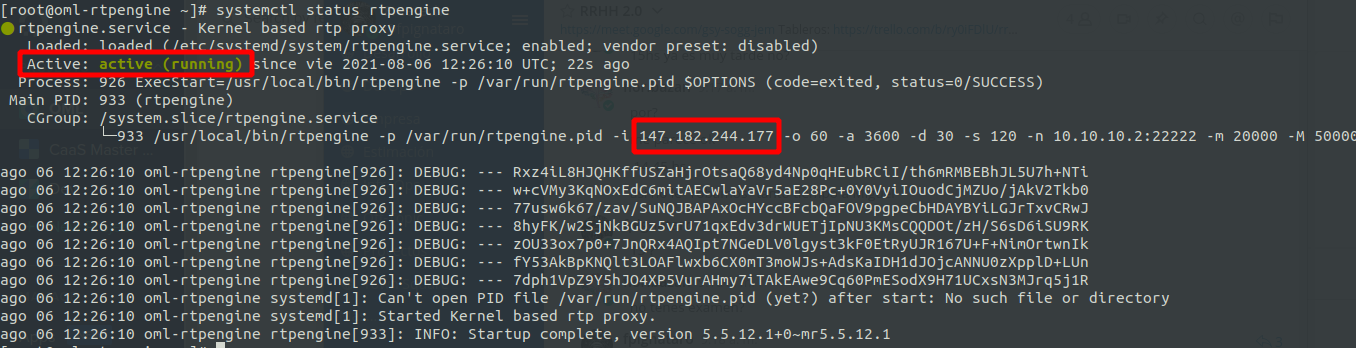
As highlighted in the figure, it is important to check that the IP address match your scenario. That is to say, if we are in a environment of users who access from LAN, we will have to use a private IPv4, and if users access from the Internet, we will use a public IPv4.